

The same spot, week after week: progress photos that show the change
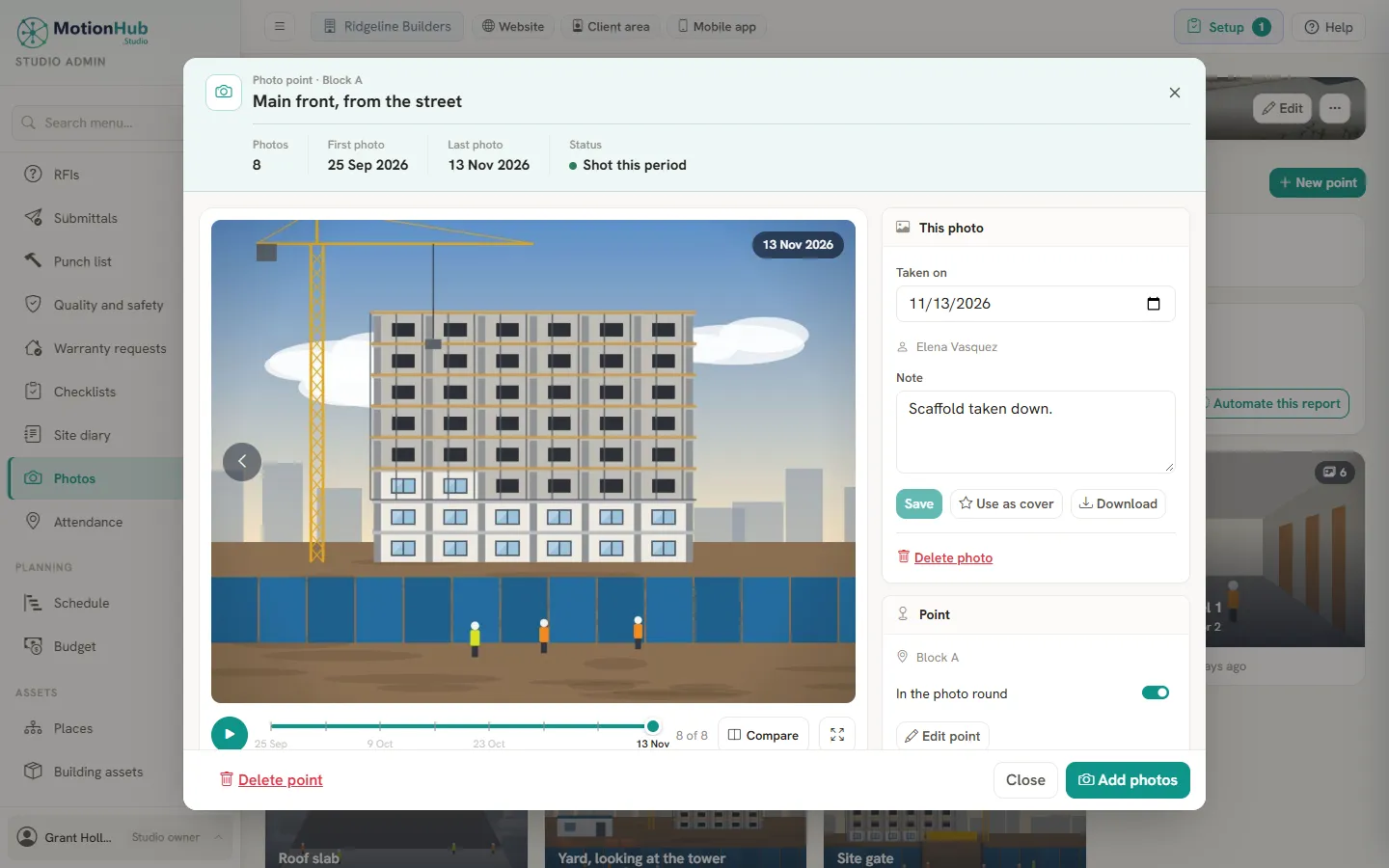
Set fixed photo points on the site, such as the lobby looking north, and shoot them again from the same spot every week. Each point keeps its photos in order, ready to slide through or compare.
- Photo points on the plan
- A photo round that shows what is due
- Line up with the last photo
The problem it solves
Progress photos usually end up as hundreds of pictures in a phone gallery, each taken from a different angle. When the client or the bank asks how the work moved this month, someone spends an afternoon looking for a before and an after.
What it does
Photo points on the plan
Each point can name a place of the project and be pinned on a drawing with the direction the camera faces. The plan shows which points were shot this period and which are due.
A photo round that shows what is due
Set how often the project is photographed, every 7 days unless you change it. Points due for a photo are marked, and the phone walks you through them one after the other.
Line up with the last photo
On the phone, the point’s last photo shows faintly over the camera, so whoever takes the picture stands where they stood before and frames the same view.
Slide, play and compare
Open a point to slide through its dates, play them in order or compare two photos side by side. Download one photo, a before and after picture or all its photos as a ZIP.
Why it matters
A photo report the client can read
The progress photo report shows each point before and now, with the date under each picture, as a PDF you can download or email on a schedule.
Every photo of a place, in one timeline
See every photo of a room or a floor over time, including those already taken on punch items, checklists and the site diary, without copying them.
Filed with the project’s documents
Each photo is kept in the project’s Photos folder, so it also shows in the document register, and the weekly client report picks its before and after pairs from the points.
Frequently asked questions
How often should progress photos be taken?
Each project sets its own rhythm, from every day to every 90 days, with one week as the default. A point is marked due once its last photo is older than that.
Can I compare two dates of the same spot?
Yes. Open the point, slide through its photos or compare two of them side by side, and download the pair as one before and after picture.
Can I send progress photos to the client every month?
Yes. The progress photo report shows each point before and now for the period you choose, as a PDF, and Automate this report emails it on a schedule.
Tailored plans
Your proposal is built in the demo, based on the size of your operation.
More features of MotionHub Construction
- Punch items and RFIsNumbered punch items, RFIs and non-conformities with photo, responsible company and due date, pinned on the plan and logged on site even without signal.
- Kinds of card and workflowsRFI, punch item, non-conformity, safety observation: each kind with its own fields, numbering and status flow, drawn as a diagram with who may take each step.
- Inspection checklistsQuality inspections, site safety inspections and material receipt checks from templates, with notes, photos and a PDF ready to sign.
- Site diaryThe daily site report with weather, crew, equipment, work done and photos, crew check-in from the phone, and a closed PDF ready to sign.
- Projects on a mapEvery project on a map, in cards or in a list, with its status, phase, open tasks and documents waiting for approval.
- Project overviewOne page per project: phases and days left, what needs attention, the site, the client and the team, with every tool of the project one click away.
- Companies and contactsSubcontractors, suppliers, designers, clients and inspectors with their people, invited to each project with or without a licence, or sent documents by transmittal.
- Document registerFolders and versions per project, approval workflows, side-by-side revision comparison and transmittals with a record of who opened what.
- Document approvalsISO 19650 approval workflows and one My approvals queue with every document waiting for you, in every project, one click per step.
- Drawing registerEvery sheet with its number, title, discipline and revision, read from the title blocks of the PDFs, with the open punch items on each sheet.
- Drawing markup and commentsArrows, boxes, revision clouds, text, measures and areas to scale, and comments pinned on the drawing that the team replies to and resolves.
- 3D models and BIMIFC, GLB, STL and OBJ models opened in the browser, with sections, measures and comments, and versions and approvals like any document.
- Schedule (Gantt)A Gantt with dependencies, the critical path and a baseline. Change a duration and every date after it moves.
- Every activityEach activity says what it waits for, who does it and where, and its real progress: actual start, actual finish and percent done.
- Look-aheadThe next 2 to 6 weeks for the site meeting: what starts, what is late and who does it, as a PDF or a weekly email.
- DelaysEvery day the system checks the project’s records and suggests delays with their cause; you confirm them and see the days you can claim.
- Budget and cost reportThe budget by cost code, with subcontracts, purchase orders and bills against each line, and the forecast, variance and margin.
- Change ordersEvery change numbered, with its cost, its price to the client and the days it adds; once approved it moves the budget and the contract.
- Progress billingEach month’s measurement starts from the progress recorded on the schedule, with retention, and becomes an invoice with a due date.
- EquipmentMachines, tools and vehicles: which site each one is on, who has it, the next service and the rentals ending, with QR labels.
- Building assetsLifts, pumps, panels: every asset from purchase to handover, with what is still missing at each stage and a COBie export.
- PlacesThe project’s buildings, floors and rooms, set up once and shared by punch items, checklists, building assets and the schedule.
- Client reportA weekly report that prepares itself with progress, time, photos and the measurement. The client opens it on the phone, asks questions and approves the measurement.
- Handover and owner’s manualEvery unit with its owner and handover date, and an owner’s manual they open from a QR code, with documents, warranties and what to look after.
- Warranty requestsThe owner opens a request from the manual and follows it from a link; your team sees if it is in warranty, which system and which company answers.
See the solution in your company.
Guided demo and commercial terms set per company.